
Guide
Learn lunaPDF in a few minutes.
Start with the basics, then pick any tool to watch a short clip of it in action.
Video guide
Put any tool on your Home screen
Use a tool every day? Give it its own icon beside your other apps, and it opens with one tap.
- Press and hold any tool on the lunaPDF Home screen.
- Tap Add when Android asks to add the shortcut. You can also drag it to the spot you want.
- Tap the new icon on your phone’s Home screen to open that tool straight away.
- 1
Choose a tool
Tap a tool on the Home screen. Tools are grouped into Review & organise, Security and More PDF Tools.
- 2
Select your file
Pick a PDF or image with Android’s file picker. lunaPDF only sees what you choose.
- 3
Review the new copy
The result opens straight away and is saved to
Documents/lunaPDF. Your original is never changed.
Change where files are saved
Open Settings → Processed Folder to choose another folder or go back to the standard one.
Put a tool on your Home screen
Press and hold any tool in lunaPDF, then confirm. It appears beside your other apps and opens with one tap.
Find everything you’ve made
Use Add Folder to Home screen in Settings for a shortcut to the Processed Files page, where you can open, rename, share or delete outputs.
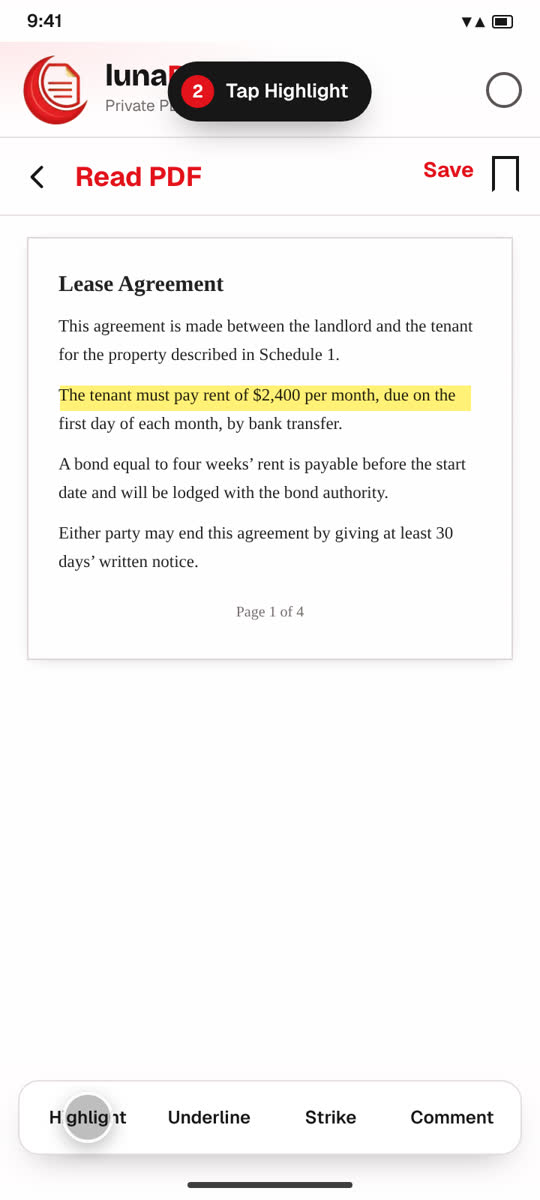
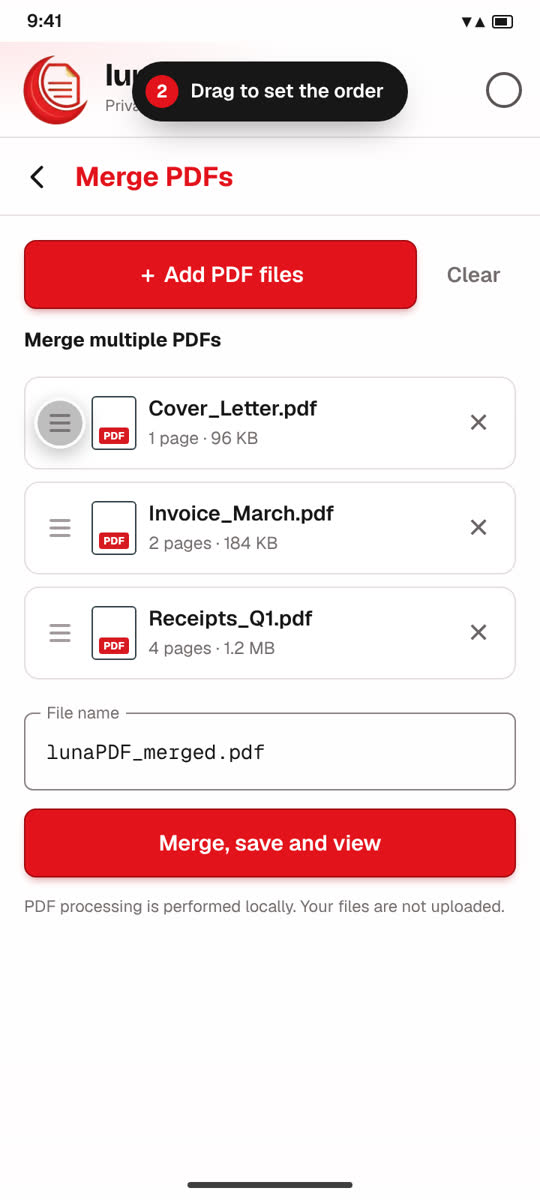
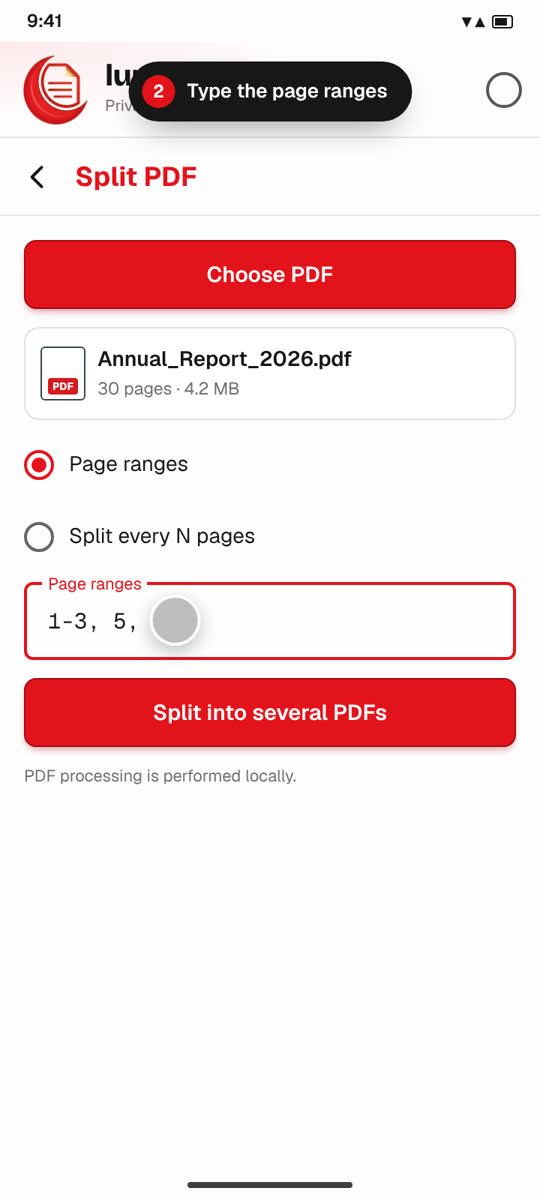
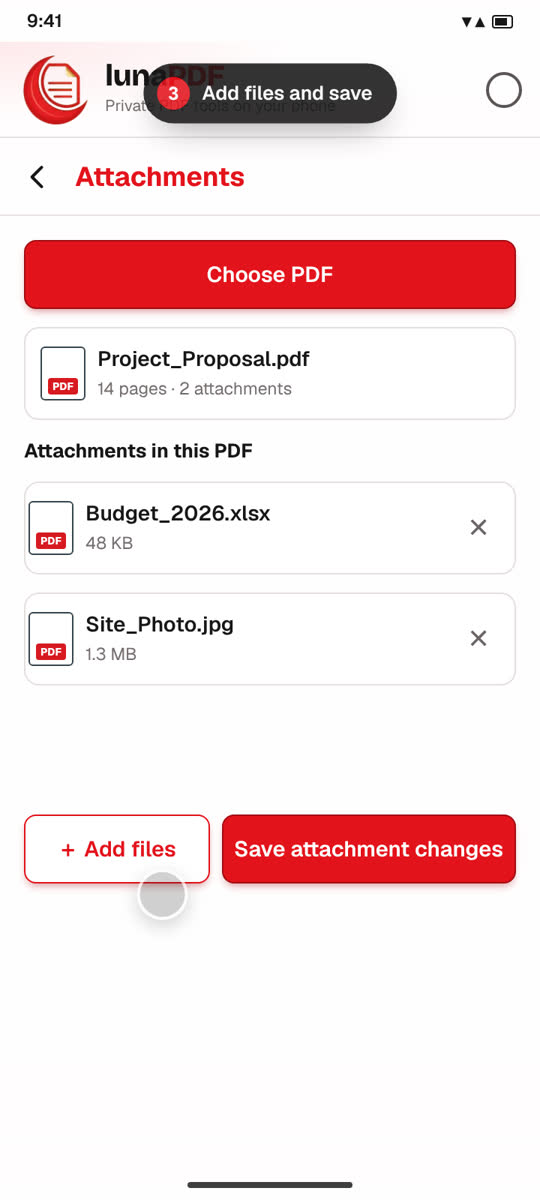
Review & organise
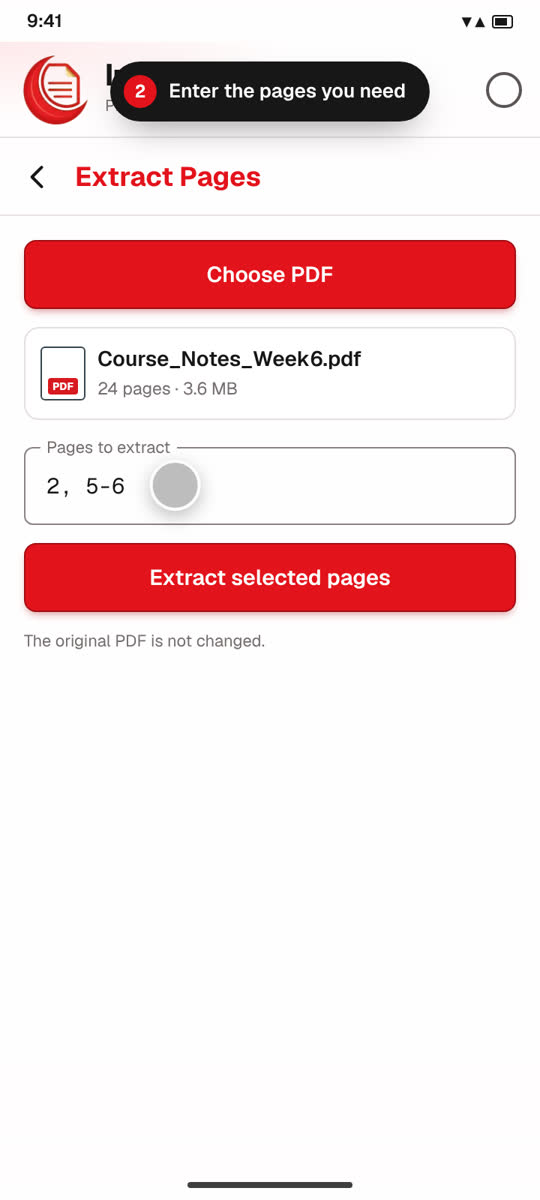
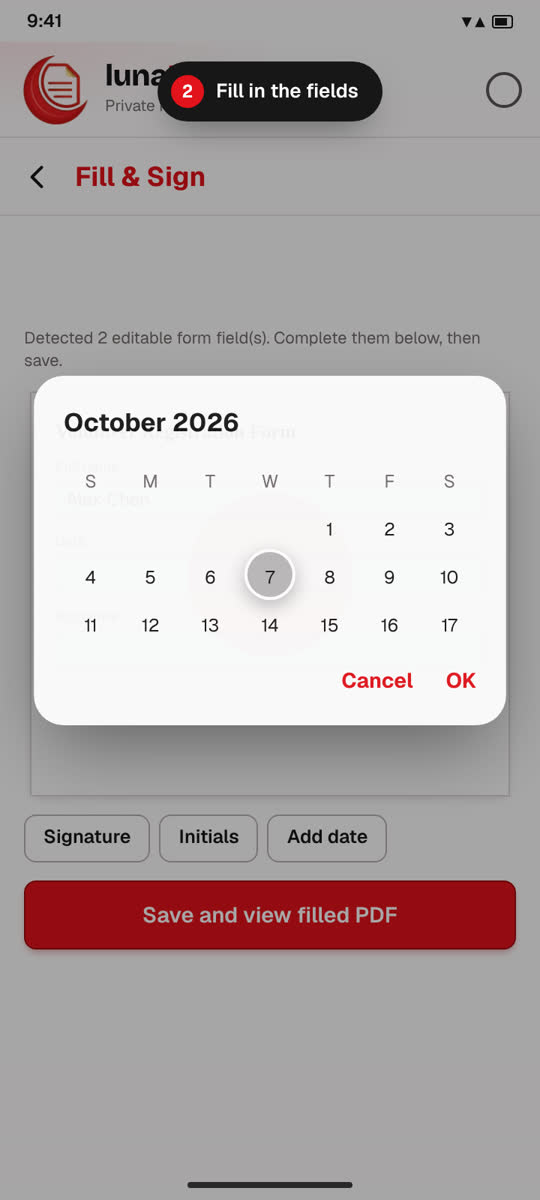
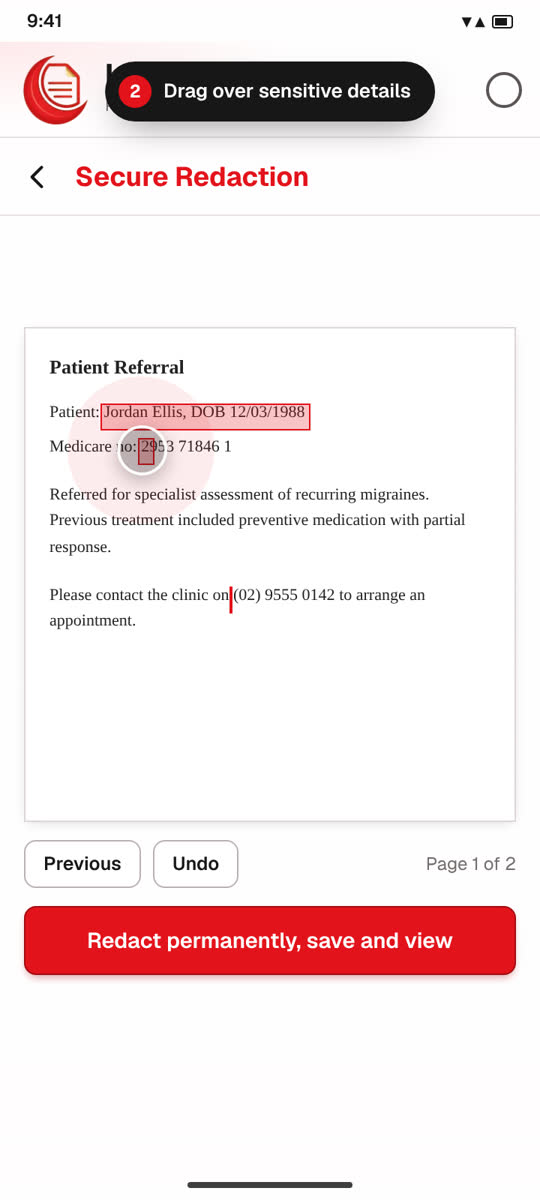
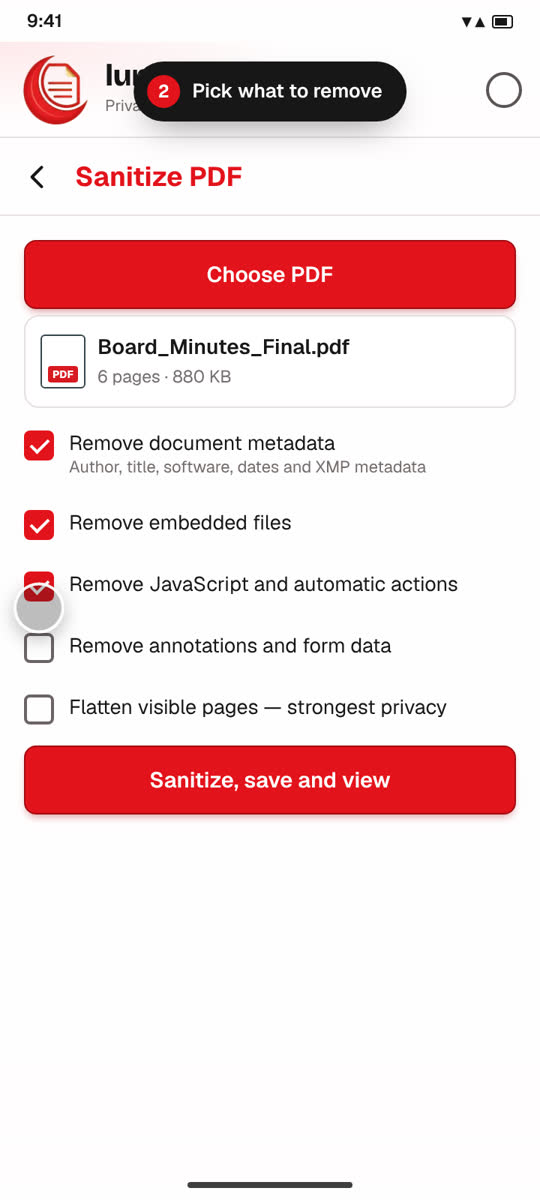
Security
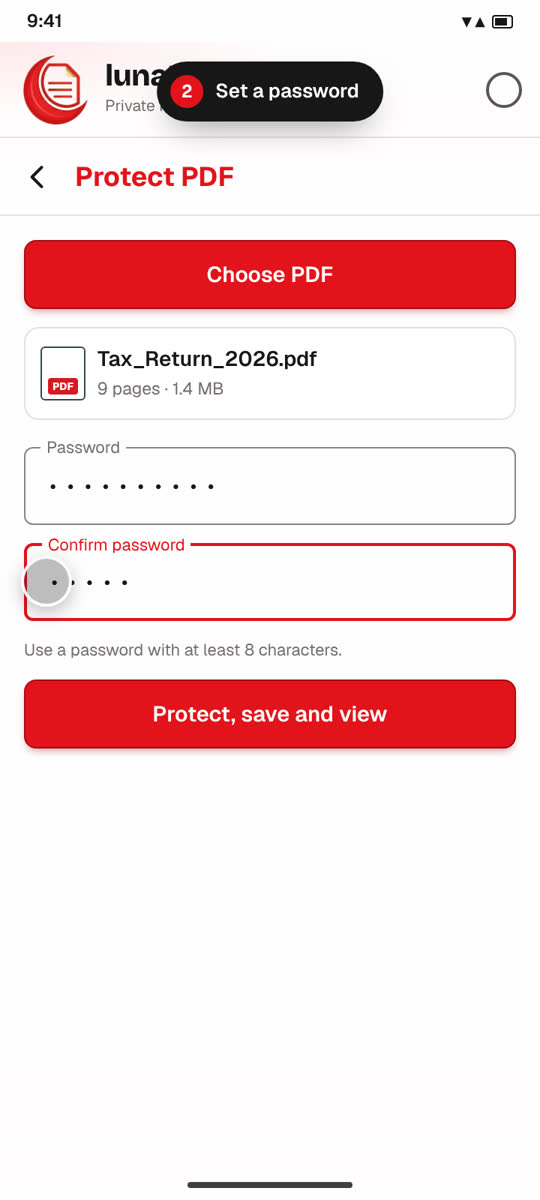
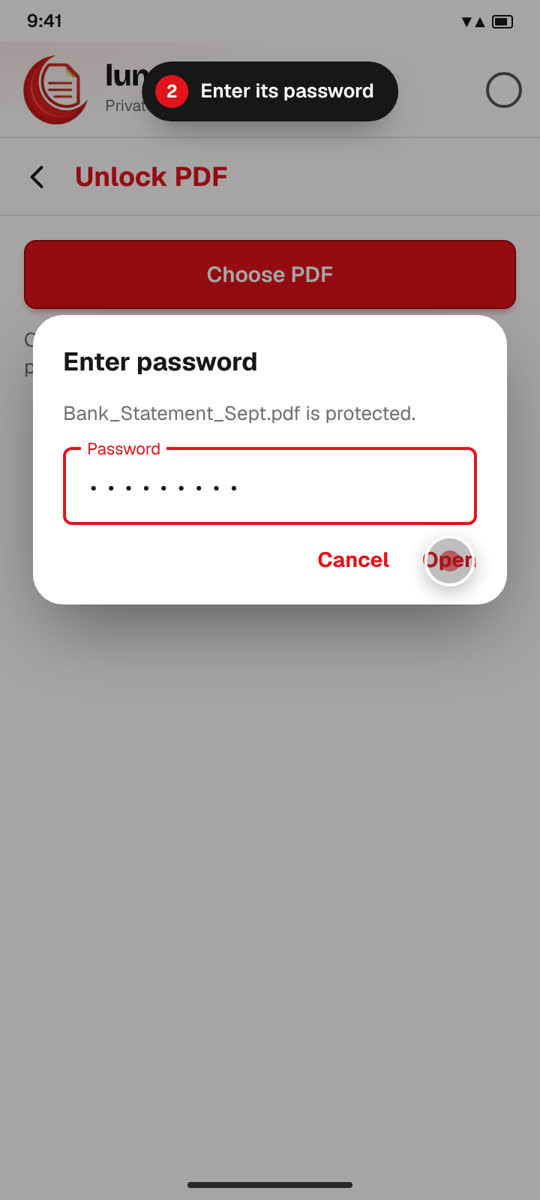
More PDF tools
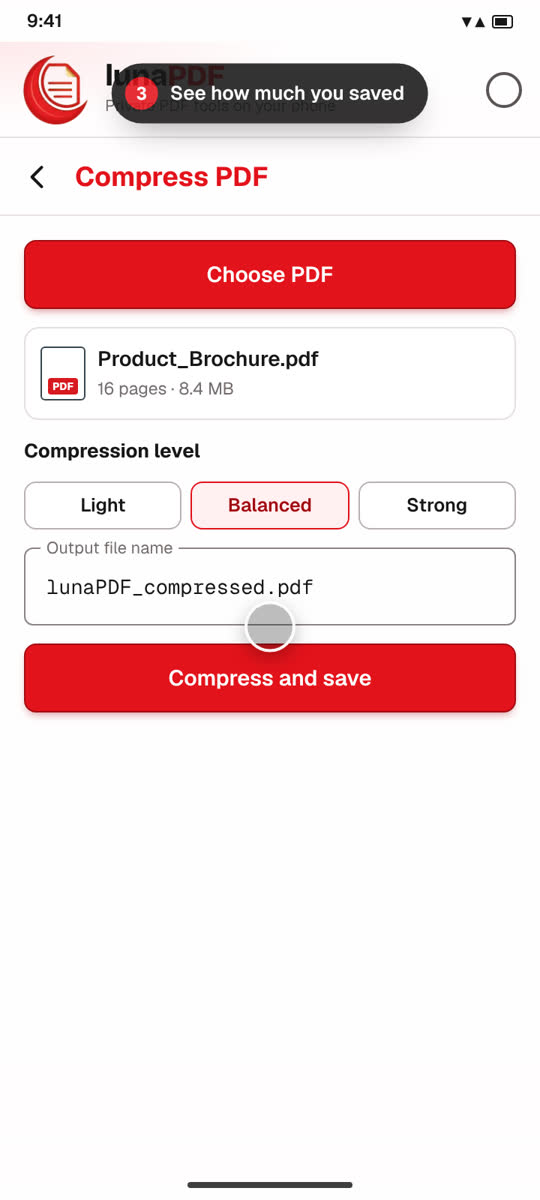 CompressMake PDFs smaller to share.
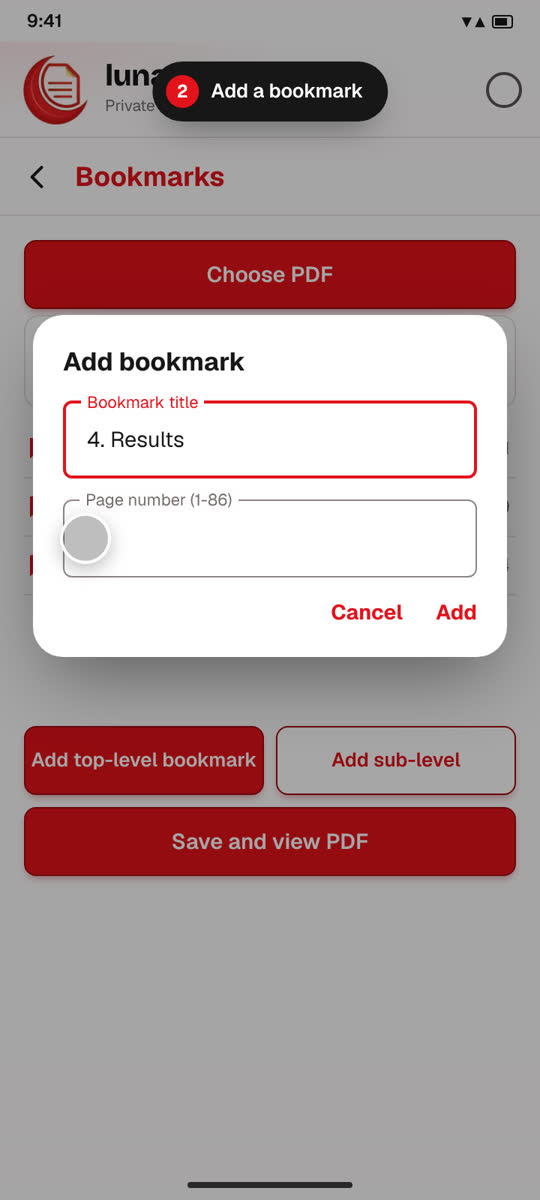 BookmarksBuild a clickable table of contents.
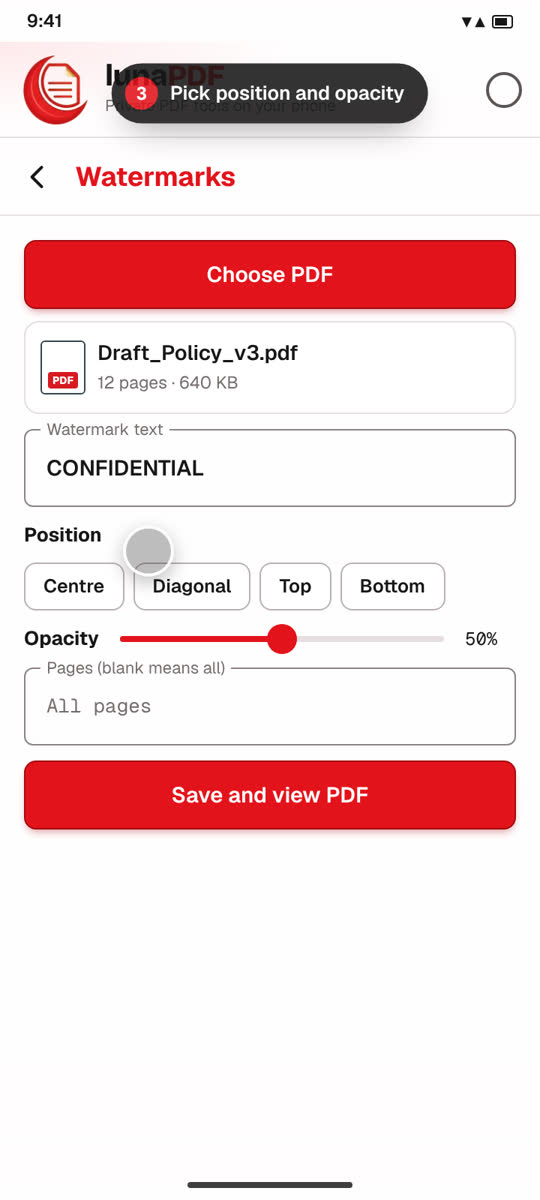 WatermarksStamp text like CONFIDENTIAL across pages.
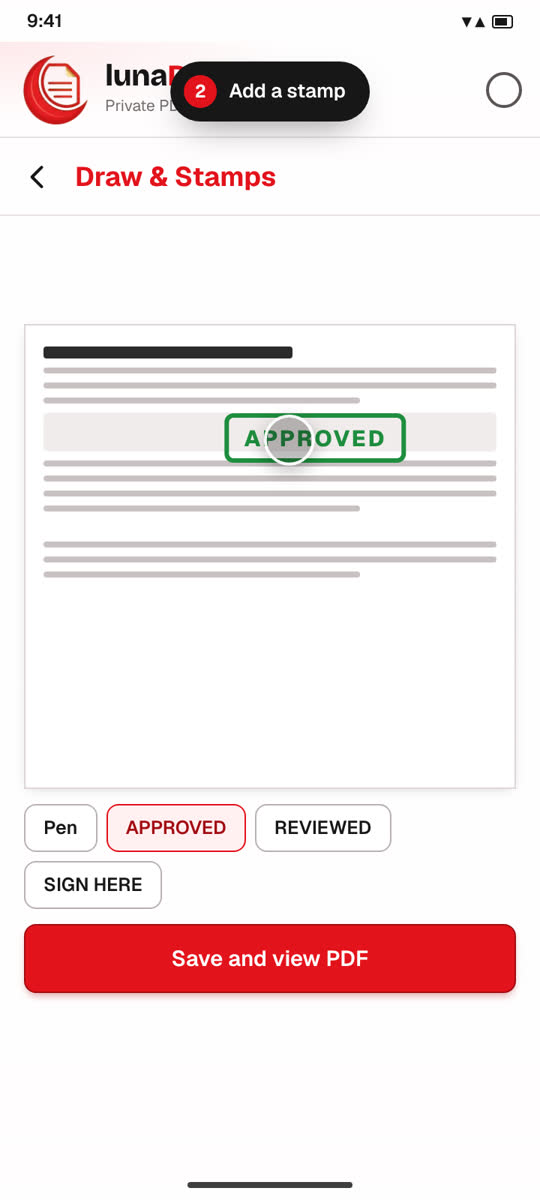 Draw & StampsFreehand ink and APPROVED stamps.
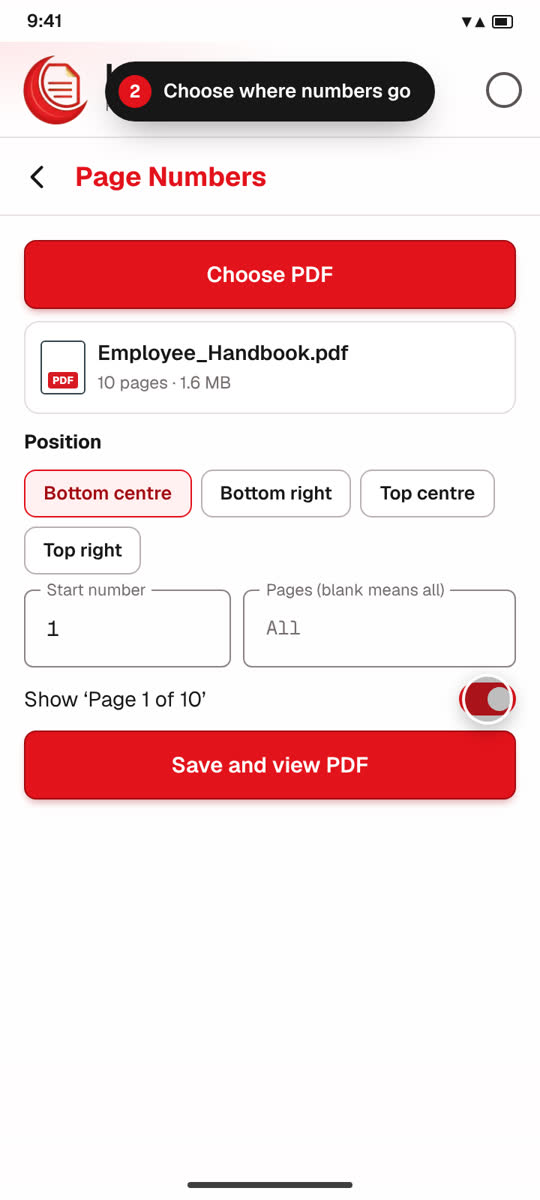 Page NumbersNumber all pages or a range.
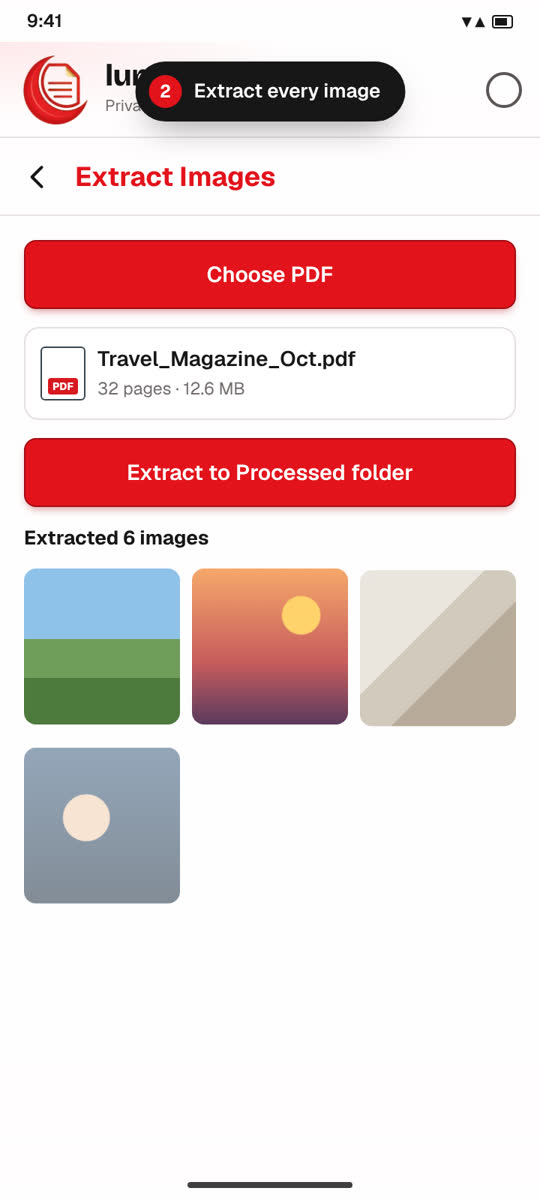 Extract ImagesSave every picture inside a PDF.
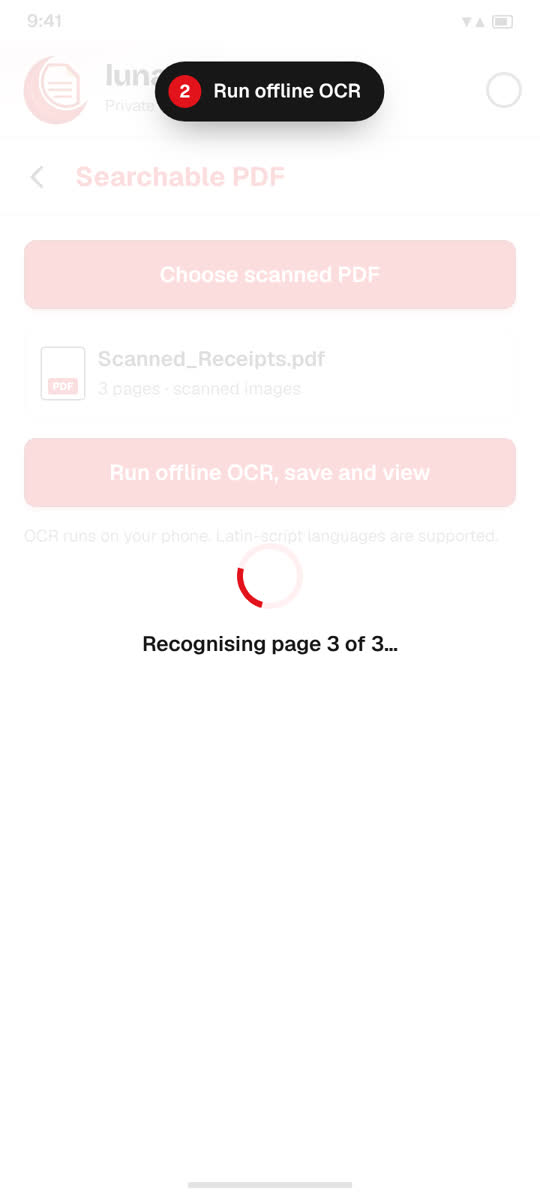 Searchable PDFOffline OCR for scanned pages.
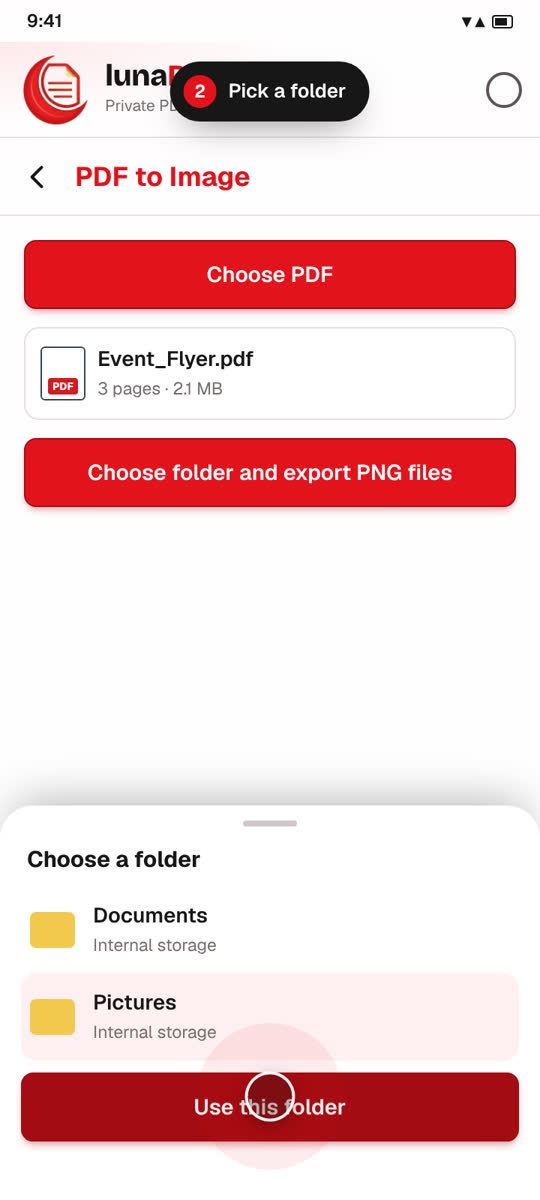 PDF to ImageExport pages as PNG images.
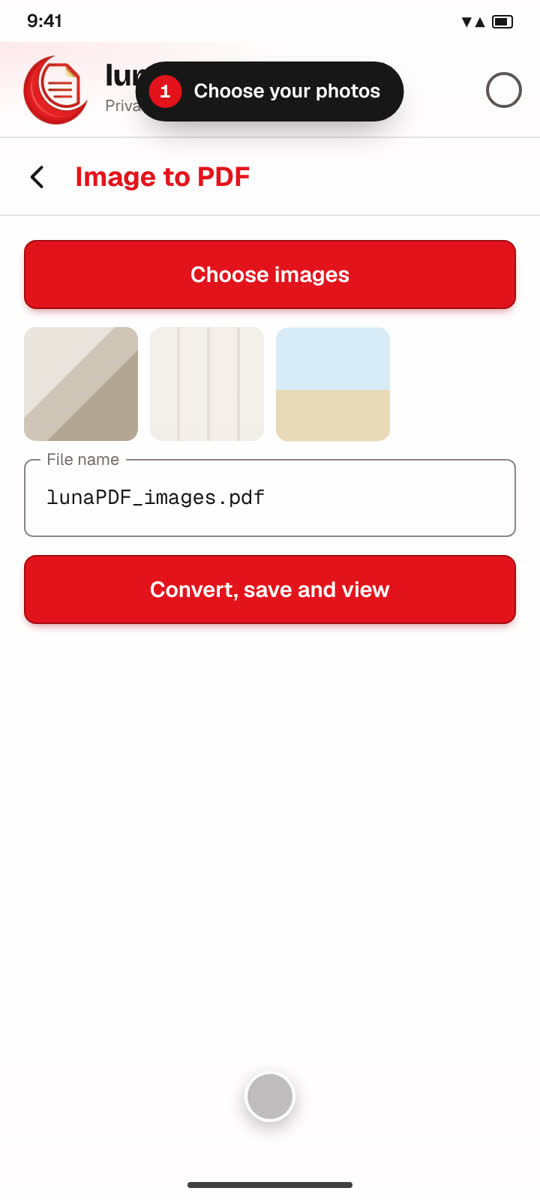 Image to PDFTurn photos into a PDF.
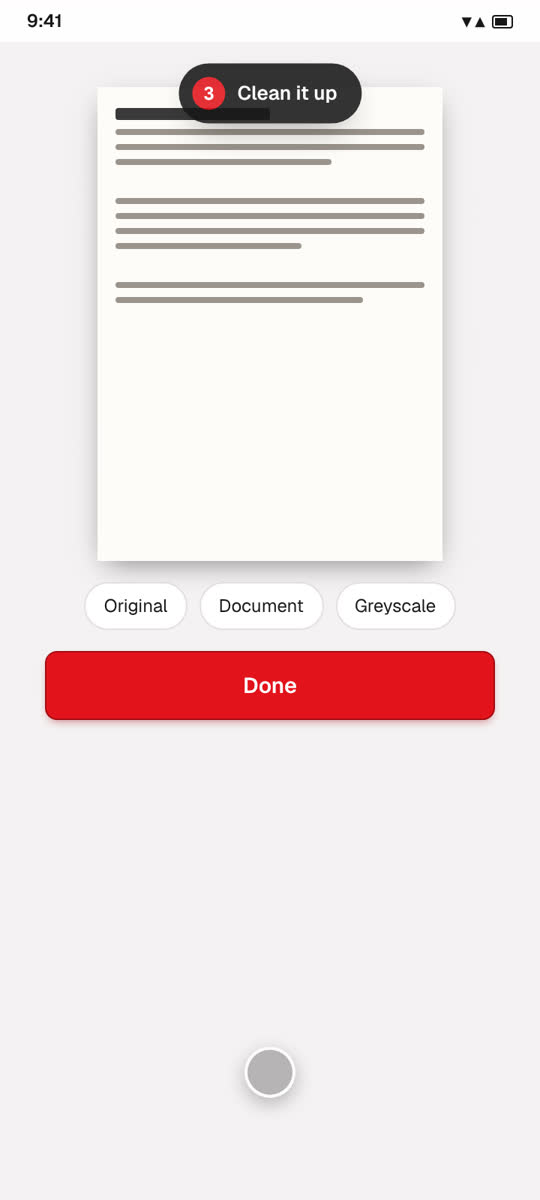 Scan to PDFScan paper with your camera.